

Views: 0 Author: Site Editor Publish Time: 2025-08-18 Origin: Site


Have you ever struggled to connect older serial devices to a modern computer? USB to serial adapters are the solution you need. These adapters are crucial for maintaining compatibility between older hardware and newer systems.In this post, we’ll discuss how USB to serial adapters work, why they are essential, and provide a step-by-step guide to connecting one. You’ll learn about installation, common issues, and advanced applications, helping you make the most of these useful devices.
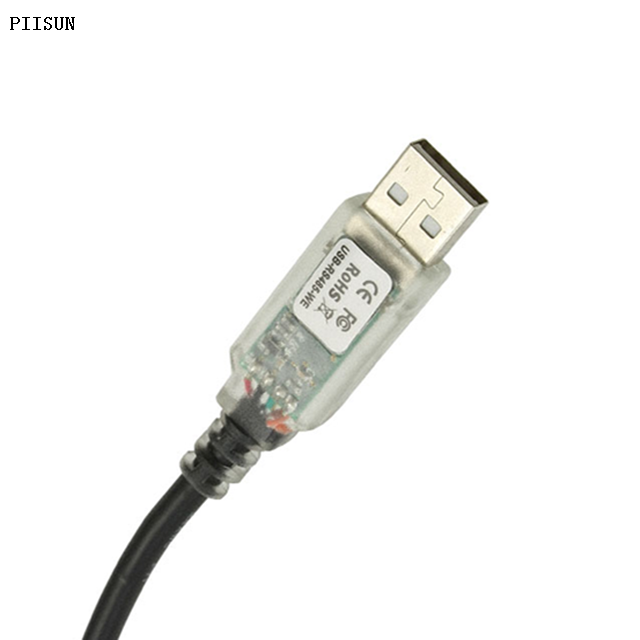
A USB to serial adapter is a small device that allows you to connect a serial device, such as an old printer or industrial equipment, to a computer's USB port. It serves as a bridge between the two different communication standards: USB and serial (RS-232 or RS-485).
USB to serial adapters are widely used in various industries where older equipment needs to interface with modern computers. Some of the most common uses include:
Industrial equipment: Connecting machinery, controllers, or diagnostic tools.
Networking devices: Configuring routers, switches, and modems.
Embedded systems: Facilitating communication between development boards and computers.
Many older devices still rely on serial communication, and they can benefit from USB to serial adapters:
Printers: Older models that use serial ports.
Modems: Devices that require serial communication for data transfer.
CNC machines: Equipment in manufacturing that needs serial connections for operation.
Networking hardware: Devices like switches or routers that require configuration via serial ports.
The shift from serial ports to USB ports has made many older devices harder to connect to modern computers. As newer devices primarily use USB connections, serial ports are becoming less common. This makes USB to serial adapters crucial for maintaining compatibility between old and new technology.
Here are a few situations where you'll need a USB to serial adapter:
Connecting legacy devices: Older printers, modems, or measurement tools that still use serial ports.
Industry-specific applications: Many industrial machines rely on serial communication, so these adapters are essential for device connectivity.
Networking equipment setup: Configuring routers or switches that have serial interfaces.
USB to serial adapters play a vital role in many fields:
Electronics: They enable communication between modern computers and older electronic devices like oscilloscopes or soldering stations.
Industrial Equipment: These adapters are key in industries where equipment still uses serial ports for control and monitoring.
Networking: They provide a simple solution for configuring or managing network devices that lack USB ports but require serial communication.
USB to serial adapters are designed to convert data between two different communication standards. These adapters act as a bridge between your computer's USB port and the serial device you're connecting to. Let’s break down how they work.
USB to serial adapters contain a microcontroller that handles the data conversion between USB and serial formats. Inside the adapter, there’s hardware that translates signals from one protocol to another, ensuring your computer can communicate properly with the serial device.
At the heart of the adapter is the UART chip. This chip converts data between the USB interface and the serial device's communication standard. The UART converts parallel data (from USB) into serial data and vice versa. It’s what allows the adapter to understand and process the signals from the serial device and send them to your computer.
The adapter performs two main tasks:
USB to Serial: It converts data sent by your computer's USB port into a serial signal the device can understand.
Serial to USB: It takes data from the serial device and converts it back into USB data that your computer can use. This conversion ensures seamless communication between the two devices despite the difference in communication standards.
Setting up a USB to serial adapter is simple, but it requires following the right steps. Here’s a guide to ensure everything works smoothly.
Before you can use the USB to serial adapter, you need to install the correct drivers. Without the proper driver, your computer won’t recognize the adapter.
Importance of Installing the Correct Driver: Drivers allow the operating system to communicate properly with the adapter.
How to Download and Install Drivers: You can install drivers either from the CD that came with the adapter or by downloading them from the manufacturer’s website.
Common Driver Issues and Troubleshooting Tips: If the driver doesn’t install or the adapter isn’t recognized, try reinstalling the driver or checking for updated versions online. Ensure that you’re using the right version for your operating system.
Once the driver is installed, it’s time to connect the adapter to your computer.
Where to Plug the Adapter: Insert the USB end of the adapter into an available USB port on your computer.
Ensuring the Adapter is Securely Connected: Make sure the connection is tight and that the adapter is properly inserted into the port.
Now, you’re ready to connect your serial device to the adapter.
Identifying Serial Ports and Choosing the Correct Cable: Identify the serial port on the adapter (often labeled as “COM” or “DB9”). Choose the correct serial cable, such as a DB9 null modem cable, for connecting your device.
Connecting the Serial Device: Plug the serial cable into the adapter and your device, making sure they’re secure.
Ensuring Proper Connection and Preventing Common Mistakes: Ensure there’s no loose connection, and avoid mixing up the cables to prevent communication errors.
Finally, you’ll need to make sure everything is working correctly.
How to Check if the Adapter is Properly Recognized: Open Device Manager on your computer and look for the new COM port under “Ports (COM & LPT).” If you see the adapter listed, it’s recognized.
Finding the Assigned COM Port Number in Device Manager: Note the assigned COM port number (e.g., COM1, COM2) for future use.
Testing the Connection with Serial Communication Software: Use serial communication software, like PuTTY or HyperTerminal, to test the connection by sending and receiving data.
With these steps, you should be able to connect your USB to serial adapter and start using it with your devices.

Connecting a USB to serial adapter can sometimes be tricky. Below are some common issues you might encounter and how to solve them.
Driver problems are one of the most common hurdles when setting up an adapter. Without the right driver, your computer won’t recognize the adapter.
Solution: First, check if you’ve installed the correct driver for your operating system. If you’re unsure, visit the manufacturer’s website and download the latest version.
Common Issue: Sometimes, Windows might automatically install a generic driver that doesn’t work well.
Fix: Uninstall the current driver and manually install the one from the manufacturer's website to ensure compatibility.
If the computer doesn’t detect your adapter, it may be caused by a faulty connection or missing drivers.
Solution:
Double-check the USB port to ensure it’s not damaged.
Try plugging the adapter into a different USB port on your computer.
Reboot your computer and reconnect the adapter.
Check Device Manager to see if the adapter shows up in the list of devices.
Connection issues can arise if the adapter is not securely connected or there’s interference between the devices.
Solution:
Ensure the adapter is securely plugged into both the computer and the serial device.
Use high-quality cables and ensure they are undamaged.
If you are using a DB9 cable, make sure it is properly inserted into both ends and the pins are aligned correctly.
Avoid long cables, which can degrade the signal.
Sometimes, the adapter may not work with certain hardware due to communication protocol differences or specific device settings.
Solution:
Make sure the serial device supports the communication standards used by the adapter (RS232, RS485, etc.).
Adjust the baud rate, parity, and stop bits in your serial communication software to match the device’s settings.
If issues persist, check the adapter’s documentation or consult customer support for troubleshooting.
By following these tips, you should be able to resolve most common issues when connecting your USB to serial adapter.
Virtual COM Ports (VCPs) allow your computer to communicate with serial devices as if they were directly connected to a traditional serial port. Here's how it works and how to set it up.
A Virtual COM Port is a software-based port that emulates a physical serial port, allowing the computer to communicate with serial devices through USB. When a USB to serial adapter is connected, it creates a virtual COM port on your system, so you can interact with serial devices using the same software as if the device was plugged into a real serial port.
When you install the drivers for your USB to serial adapter, the operating system recognizes it as a new serial port. The adapter creates a Virtual COM Port by mapping the USB connection to the serial protocol of the device you're using.
Step 1: Install the drivers for the adapter.
Step 2: Once the driver is installed, your system will assign a COM port number (like COM1, COM2) to the adapter, enabling serial communication.
Step 3: The operating system treats this virtual port just like any other physical COM port.
Once the virtual COM port is set up, you can configure it to communicate with your serial device.
Step 1: Open Device Manager on your computer to see the list of available COM ports.
Step 2: Right-click on the new Virtual COM Port and select Properties. Here, you can configure settings such as baud rate, parity, and flow control to match your device’s specifications.
Step 3: Use serial communication software (like PuTTY or HyperTerminal) to access the virtual COM port. Select the COM port number and configure the software to match the settings you adjusted.
With these steps, you can effectively set up and use Virtual COM Ports for serial communication.
When using a USB to serial adapter, you might face some common issues. Here are some tips to help you troubleshoot and maintain stable communication.
Communication errors are often caused by misconfigured settings or hardware issues. Here’s how to spot them:
Data Corruption: If the data received appears garbled, this could be due to incorrect serial settings or a faulty cable.
No Communication: If there’s no data flow between the devices, check the connections, drivers, and COM port configuration.
Timeouts: If the connection drops frequently, the issue may lie in signal interference or incorrect flow control settings.
Setting the correct baud rate and serial port settings is crucial for stable communication:
Baud Rate: Ensure the baud rate on your computer matches the serial device’s settings (e.g., 9600, 115200).
Parity, Data Bits, and Stop Bits: Double-check these settings in the serial software. Mismatched values often lead to errors.
Flow Control: Use software or hardware flow control based on your device’s requirements. Incorrect flow control settings can lead to data loss.
To avoid connection drops or errors, follow these best practices:
Use High-Quality Cables: Poor quality or damaged cables can cause unreliable connections. Always use good-quality USB and serial cables.
Keep Connections Secure: Ensure that both the USB and serial connections are tight and free of physical damage.
Avoid Long Cable Lengths: Long cables can degrade the signal, causing communication issues. If possible, use shorter cables for better performance.
Update Drivers Regularly: Keep your adapter drivers updated to avoid compatibility issues and improve performance.
By following these troubleshooting tips, you can ensure a smoother experience when using a USB to serial adapter.
USB to serial adapters aren’t just useful for everyday connections; they have advanced applications in various industries and technologies.
In industrial settings, USB to serial adapters play a crucial role in maintaining communication with legacy equipment. They enable the connection of modern computers to:
CNC Machines: These adapters allow computers to interface with older CNC machinery, facilitating control and programming.
Routers and Switches: Network administrators often use USB to serial adapters to configure routers and network switches that rely on serial communication.
Embedded systems, such as microcontrollers and development boards, often use serial communication for debugging and data transfer. USB to serial adapters help:
Programming Embedded Systems: Developers use them to upload code or communicate with microcontrollers through serial ports.
Debugging: They’re essential for serial debugging, allowing real-time monitoring of data exchange between embedded systems and computers.
Networking equipment still frequently uses serial connections for configuration and management. USB to serial adapters are used to:
Connect to Serial Console Ports: Technicians often use them to connect to the console ports of networking devices like switches and routers for configuration.
Remote Management: In cases where network equipment is in remote locations, USB to serial adapters allow for the management of devices via a local machine connected through USB.
These advanced uses show just how versatile USB to serial adapters are across different industries and applications.
When purchasing a USB to serial adapter, it’s essential to choose the one that best suits your needs. Here are key factors to consider.
Serial Port Type (RS232, RS485, etc.): Different devices use different serial communication standards. Make sure the adapter supports the specific type of serial port your device requires, such as RS232 (common for older devices) or RS485 (used for industrial control systems).
Adapter Compatibility with Your Operating System: Ensure the adapter is compatible with your computer’s operating system, whether it’s Windows, macOS, or Linux. Some adapters may have limited support, so check the manufacturer’s specifications.
Adapter Quality and Support: Quality matters when it comes to reliability and performance. Look for adapters made by trusted brands and check if they offer customer support or warranty. A well-supported adapter ensures better troubleshooting if you encounter any issues.
Several brands offer high-quality USB to serial adapters, such as:
FTDI: Known for their reliable drivers and compatibility.
Prolific: Offers budget-friendly options with decent quality.
StarTech: A premium brand providing durable and high-performance adapters.
Consider your budget and requirements when choosing between these brands and options. Higher-end models often offer better support, faster speeds, and more robust durability.
USB to serial adapters are essential for connecting older devices to modern computers. They enable seamless communication between different serial protocols and USB ports.
When setting up, ensure you install the correct drivers and choose the right adapter for your device.
Explore other serial communication solutions to find the best fit for your needs.
A: You can connect various devices, including printers, modems, CNC machines, and networking equipment, that use serial communication.
A: The maximum distance typically depends on the type of serial communication, but it is usually around 50 feet (15 meters) for RS232.
A: Yes, most USB to serial adapters are compatible with macOS and Linux, but you may need to install additional drivers.
A: Usually, you just need the right drivers for the adapter, but specific software may be required for advanced features or configurations.
A: Check for correct driver installation, ensure secure connections, and verify port settings. Try using different cables or USB ports if necessary.

