

Views: 0 Author: Site Editor Publish Time: 2025-08-18 Origin: Site


Do you ever wonder why some devices still use serial cables while most others have switched to USB? Understanding the difference between serial cable and USB cable is essential for choosing the right connection for your devices.In this post, we’ll discuss the key differences between these two types of cables, their uses, and why USB cables are becoming the standard in most modern technology.

A serial cable is a type of connection that transmits data one bit at a time over a single wire. Historically, these cables were used in early computing and communication systems. They were essential for connecting devices like modems, printers, and early personal computers.
There are several types of serial cables, each designed for specific uses:
RS-232: The most common serial cable standard, often found in older computers and peripheral devices.
RS-422: Offers better noise resistance, used in industrial equipment.
RS-485: A more advanced standard for long-distance communication, allowing multiple devices to be connected.
Devices that commonly use serial cables include modems, barcode scanners, and older printers.
Serial cables have been a staple in the world of technology because of their:
Simplicity: With fewer wires and less complexity, they are easy to set up.
Low cost: Compared to newer cables, serial cables are inexpensive.
Industrial use: They remain popular in industrial applications and legacy systems, where they perform basic communication tasks reliably.
However, serial cables also have their limitations:
Slow speed: The bit-by-bit transmission makes them slower than modern alternatives.
Compatibility issues: As newer devices adopt faster technologies, serial cables struggle to connect with them.
Despite these drawbacks, serial cables are still found in older devices and specific industries that require reliable, low-speed communication.
USB cables are a modern type of connection used to transfer data and power between devices. They’ve evolved significantly over time, becoming the standard for connecting everything from smartphones to computers. There are several types of USB cables:
USB-A: The traditional rectangular connector found on most computers.
USB-B: Commonly used in printers and other peripherals.
USB-C: The newest and most versatile connector, supporting fast data transfer and charging.
Micro USB: Smaller than USB-A, typically used for mobile devices.
USB was introduced in the 1990s to simplify and standardize connections for devices. It quickly replaced older interfaces, offering faster speeds and more convenience. The development of USB standards, from USB 1.0 to USB 4.0, has greatly improved data transfer rates and the ability to power devices.
USB cables have become the go-to for modern connections due to their many advantages:
Faster speeds: USB offers much faster data transfer than serial cables.
Power delivery: USB cables can charge devices, reducing the need for separate power cables.
Plug-and-play functionality: Devices can be connected or disconnected without restarting your system.
Hot-pluggable: USB devices can be connected while the computer is on, making them very convenient.
While USB cables are incredibly useful, they do come with some drawbacks:
Compatibility issues: Older devices may not have USB ports, requiring adapters.
Complex wiring: Newer USB standards may require additional drivers or more complicated cables.
Despite these challenges, USB remains the most widely used connection method across modern devices.
Serial Cables
Data is transferred bit by bit, leading to slower speeds.
They typically offer lower transfer rates, making them less suitable for high-volume data.
USB Cables
Use parallel transmission, sending multiple bits simultaneously for faster speeds.
USB standards like USB 2.0 and USB 3.0 offer speeds ranging from 480 Mbps to 5 Gbps, making them much faster than serial cables.
Serial Cables
They do not support power delivery.
Devices often need separate power sources to operate.
USB Cables
USB cables can transfer both data and power.
They are used to charge devices like smartphones and tablets, eliminating the need for separate power cords.
Serial Cables
Common in industrial settings and legacy computer systems.
Frequently used in modems, networking equipment, and older machines for basic data transmission.
USB Cables
Widely used in consumer electronics like smartphones, printers, and external drives.
USB has become the standard for modern devices and peripherals due to its versatility.
Serial Cables
Mostly compatible with older systems and equipment.
They use connectors like DB9 and DB25, common in older computers and telecommunication systems.
USB Cables
USB is universally compatible across modern devices.
There are various USB connectors (USB-A, USB-C, Micro USB), each designed for different uses.
Serial Cables
Typically use larger, traditional connectors (e.g., DB9, DB25).
Their larger design makes them bulkier but simpler for basic connections.
USB Cables
USB cables feature smaller, more compact connectors.
They are designed to be user-friendly and widely accessible across multiple devices and systems.
USB cables have become the dominant connection standard for several reasons:
Speed: USB offers much faster data transfer rates than serial cables. This makes it ideal for high-speed applications like data transfer and charging.
Versatility: USB is used across a wide range of devices. It can connect everything from computers and printers to smartphones and cameras.
Ease of Use: USB is designed to be plug-and-play, meaning devices can be connected and used without restarting the system. It also supports hot-plugging, allowing you to connect and disconnect devices while the computer is on.
USB has become a cornerstone of modern computing and technology:
Modern Computing Ecosystem: USB’s role has expanded from just data transfer to powering devices and connecting peripherals.
Replacing Serial Ports: On most modern computers and devices, USB ports have replaced serial ports. USB’s ability to support multiple devices through hubs and adapters has made it the go-to connection.
USB Evolution: USB technology continues to evolve, with USB 4.0 offering even faster speeds and enhanced capabilities like video output.
Serial Cables' Niche Roles: While USB dominates most consumer devices, serial cables remain relevant in specialized applications, such as industrial equipment and legacy systems where newer technologies are not always compatible.
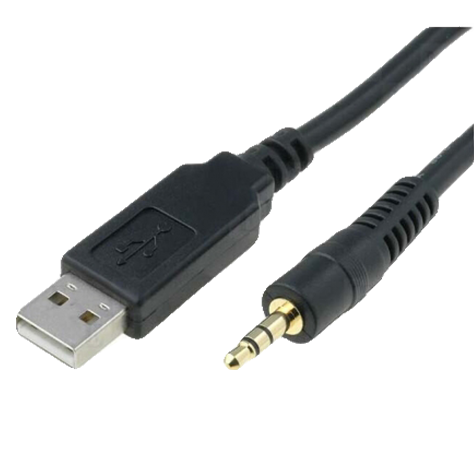
Serial cables are still useful in certain situations:
Legacy Systems: Older equipment, especially in industrial settings, may only support serial connections.
Industrial Applications: Devices like programmable logic controllers (PLCs) and certain networking equipment rely on serial communication.
Low-Speed Data: When you don’t need fast data transfer, serial cables work well for simple tasks like configuring machines or connecting modems.
USB cables are ideal for most modern applications:
Everyday Use: USB is the go-to for connecting computers to peripherals like keyboards, printers, and external drives.
Data Transfer and Charging: USB cables support fast data transfer and power delivery, making them perfect for smartphones, tablets, and laptops.
Choosing the Right USB Cable: When selecting a USB cable, consider the type of connector (USB-A, USB-C, Micro USB) and the speed required (USB 2.0, 3.0, or 4.0) based on your device's needs.
When using serial cables, some common issues can arise:
Connection Problems: COM port conflicts often occur when multiple devices try to use the same port. You can resolve this by changing the port number in your device manager.
Signal Interference: Serial cables are more prone to signal loss, especially over longer distances. Shielded cables or shorter connections can help minimize this issue.
Loose Connections: Sometimes, the connection can become loose. Ensure the cable is securely plugged in and check for any bent pins.
USB cables are also prone to their own set of problems:
Connection Errors: If your USB device is not connecting properly, try unplugging and reconnecting it. You can also check the cable for damage.
Speed Limitations: Some older USB cables may not support higher data transfer speeds. Ensure you’re using the correct USB version for your device (e.g., USB 3.0 for faster speeds).
Device Not Recognized: If a USB device isn’t recognized, try reinstalling the drivers or using a different USB port. Restarting the computer can also help solve this issue.
Charging Problems: If your device isn't charging, check the cable for visible damage or test the cable with a different device to isolate the issue.
By identifying the issue and following these troubleshooting tips, you can ensure a smoother experience with both serial and USB cables.
Serial cables transmit data bit by bit, while USB cables use parallel transmission for faster speeds. USB cables also offer power delivery, unlike serial cables. USB is more versatile, compatible with modern devices.
For legacy systems or industrial use, serial cables may be necessary. For modern devices, USB cables are the better choice due to their speed and ease of use.
A: Serial cables transmit data one bit at a time, while USB cables use parallel transmission for faster speeds and can also transfer power.
A: Yes, USB to serial adapters allow modern devices with USB ports to connect to serial devices, making it easier to use older equipment.
A: USB uses parallel transmission, sending multiple bits at once, while serial cables transmit data bit by bit, leading to slower speeds.
A: Try reconnecting the cable, testing it with another device, or updating the drivers. Restarting the computer can also help.
A: Yes, serial cables are still used in legacy systems and some industrial applications, despite being replaced by USB in most consumer devices.

