

Views: 0 Author: Site Editor Publish Time: 2025-08-27 Origin: Site


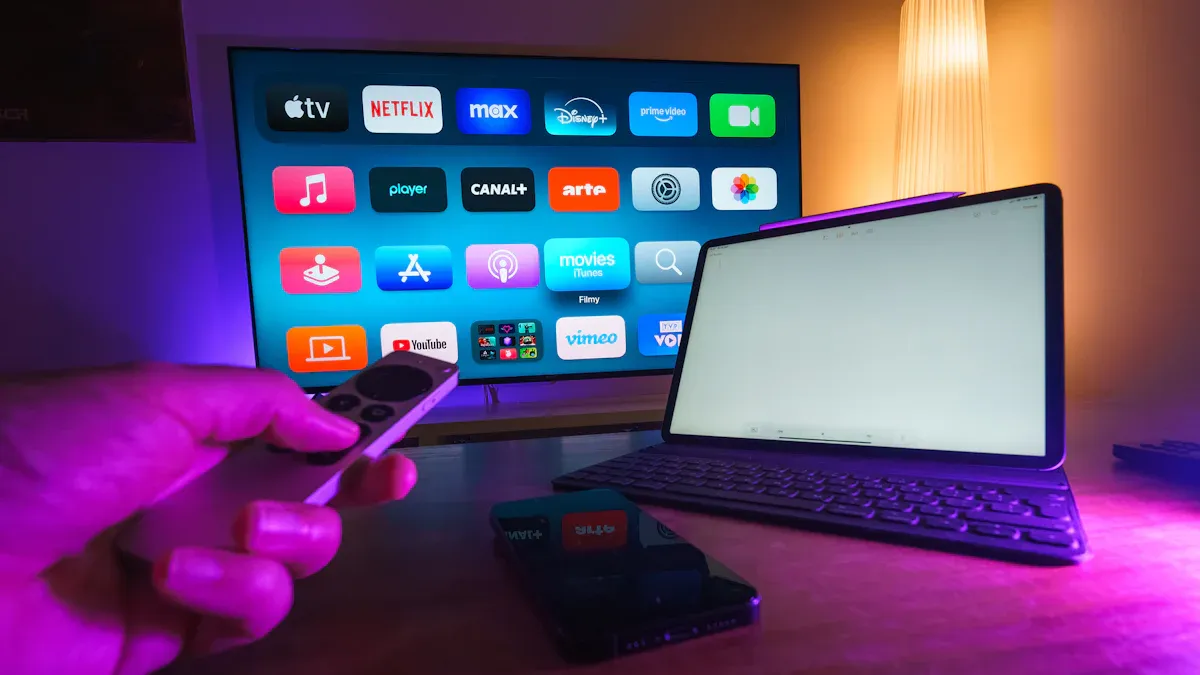
You might wonder how an hdmi streamer actually works. It’s pretty simple! You connect your hdmi devices, like a camera or laptop, to the hdmi streamer. The hdmi streamer grabs the video and audio signals from your hdmi source. Then, it turns those signals into a digital stream you can send over the internet or save for later. Using an hdmi streamer feels like plugging in and pressing play—no complicated steps needed.
An HDMI streamer takes video and sound from things like cameras or laptops. It sends the signal online or saves it for later use.
You can plug in many HDMI devices at the same time. You can switch between them quickly. This is helpful for gaming, live shows, or online classes.
The streamer has a strong processor inside. It changes video into good formats. This keeps the video clear and smooth with little delay.
Good internet and audio choices help give clear sound and steady video. You can send your stream to places like YouTube or Facebook Live.
Easy controls and remote tools make streaming simple, even for new users. Features like recording and overlays help make your broadcasts better.
You might have seen the term "hdmi streamer" and wondered what it means. An hdmi streamer is a small device that takes video and audio from your hdmi source, like a camera, game console, or laptop. You plug your hdmi cable into the streamer. The device grabs the signal and gets it ready for sharing. It can send the video and sound over the internet or save it for you to watch later.
Most hdmi streamers have several hdmi ports. You can connect more than one device at a time. Some streamers let you switch between different hdmi sources. You might see a streamer with extra features, like a display screen or buttons for easy control. These devices help you get the best quality from your hdmi equipment.
You can use an hdmi streamer in many ways. Here are some of the most popular uses:
Stream your favorite console games, like PlayStation or Xbox, to friends or fans online.
Turn your DSLR or mirrorless camera into a webcam for video calls or live shows. This gives you much better video quality than a regular webcam.
Share high-quality video from your laptop or computer for online classes, meetings, or events.
Record important moments, like school plays or sports games, and save them for later.
Use multiple hdmi devices at once for big events, like conferences or live shows. You can switch between cameras or screens with just a button.
Enjoy smooth streaming with low delay, which is great for gaming or live events.
Tip: If you want the best video and sound, look for a streamer that supports high resolutions, like 1080p at 60 frames per second, and has more than one hdmi port.
An hdmi streamer helps you share, record, and enjoy video from almost any hdmi device. Whether you want to show off your gaming skills or run a big event, this tool makes it easy.
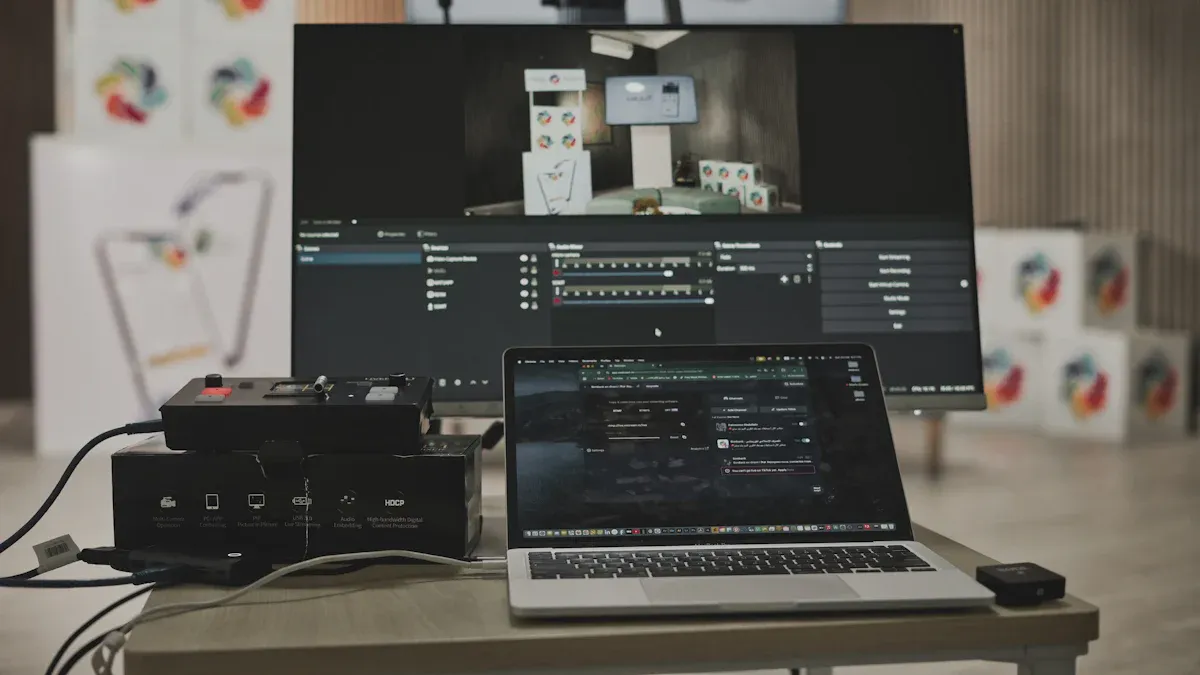
When you see an hdmi streamer, you notice many hdmi ports. These ports let you hook up things like cameras, laptops, or game consoles. The Caratar Custom 4 Port HDMI Streamer has four hdmi input ports. You can connect up to four devices at the same time. This is great for events where you want to use different cameras or screens.
There are also hdmi and VGA output ports. These send video to a monitor, projector, or another screen. You can show live video, a director’s view, or split the screen. The device switches between sources for you. You just pick the input you want, and the output changes right away.
Here’s what you usually get on a professional hdmi over ip device:
Several hdmi input ports for cameras, computers, or other sources.
HDMI and VGA output ports for sending video to screens.
Audio input and output for microphones, speakers, or headphones.
Support for high-definition video, like 1080p at 60 frames per second.
Easy switching between different input signals.
Tip: If you want to stream a big event, more hdmi inputs and outputs give you more control.
Inside every hdmi over ip device is a strong processor. This processor takes the hdmi signal from your device and gets it ready for streaming or recording. It decodes the video and audio, works on them, and then encodes them into a digital format. The Caratar Custom 4 Port HDMI Streamer uses an embedded Linux system for smooth and steady performance.
The processor does more than just move the signal. It can pull out audio, add effects, and even put new audio into the hdmi stream. This makes your video and sound better. The device supports advanced encoding standards like H.264 and H.265. These formats shrink the video so you can stream it online without losing quality.
Here’s a quick look at common encoding standards:
Encoding Type | Supported Video Codecs | Supported Audio Codecs | Input Types | Streaming Outputs | Additional Features |
|---|---|---|---|---|---|
Video | MPEG-2, H.264, H.265 | Dolby AC3, MPEG-1 Layer II, HE-AAC | HDMI, VGA | RTMP, RTSP, UDP, TCP | Low delay, real-time encoding |
The processor also helps keep the delay very low. This means your video and audio reach people almost right away. You get smooth, real-time streaming, which is great for live events or gaming.
To send your video online, your hdmi over ip device needs good network connections. The Caratar Custom 4 Port HDMI Streamer has built-in network ports. You plug in your ethernet cable, and the device connects to your network or the internet. This lets you stream to places like YouTube, Facebook Live, or your own website.
Audio is just as important as video. The device gives you many audio input and output choices. You can connect microphones, speakers, or headphones. There are line-in and line-out ports, plus a headphone port for checking your sound in real time. This means you can listen to your audio before you go live.
Here’s what you get with a professional hdmi over ip device:
Ethernet port for fast, steady network connections.
Support for streaming protocols like RTMP, RTSP, UDP, and TCP.
Audio input and output ports for flexible sound options.
LCD display on the front to show device status, disk space, and signal info.
Fanless design for quiet use, perfect for studios or classrooms.
The Caratar device also lets you record and store many video signals at once. You can save them to the built-in hard drive or an external USB drive. The LCD display helps you manage everything in real time. You see your recording status, how much disk space you have, and which input or output is active.
Note: Multi-channel recording and storage make it easy to handle big projects, like conferences or live shows. You can switch between signals, record everything, and stream to your audience—all from one device.
When you use an hdmi over ip device, it first grabs the signal. You plug in your camera, laptop, or game console. The device takes the video and audio right away. You do not need to set up anything hard. The hdmi streamer does all the work for you.
Inside the Caratar Custom 4 Port HDMI Streamer, a strong processor works quickly. It reads the hdmi signal and gets it ready for streaming or saving. The device uses special encoding formats like H.264 and H.265. These formats make the video smaller but keep it looking good. You can stream in full HD, up to 1080p at 60 frames per second. Some hdmi over ip devices can even handle 4K video.
Here is how the signal capture and encoding works:
Plug your hdmi source into the input port.
The device grabs the signal and sends it to the processor.
The processor encodes the video and audio with H.264 or H.265.
The encoded signal is ready for streaming or saving.
The Caratar streamer can work with more than one hdmi signal at once. You can switch between cameras or screens easily. The device supports constant bitrate (CBR) and variable bitrate (VBR) modes. You get smooth video, even if your network changes.
Tip: Hardware encoding helps your computer work less. You get better video and less lag when streaming.
After encoding, the hdmi over ip device sends the signal out. This step moves the video and audio to the internet or your network. The Caratar Custom 4 Port HDMI Streamer supports many streaming protocols. You can choose the best one for your needs.
Some common protocols are RTMP, RTSP, UDP, and TCP. RTMP is good for live streaming to YouTube or Facebook. RTSP works well for streaming on your local network. UDP is fast and great for big events. The device can send the signal to more than one place at the same time.
Here is a quick look at popular streaming protocols:
Protocol | Use Case | Notes |
|---|---|---|
RTMP | Live streaming to CDNs | Reliable, low latency |
RTSP | Local network streaming | Good for LAN setups |
UDP | Fast transmission | Used for big events |
TCP | Stable connection | Good for steady output |
The hdmi over ip device turns the hdmi signal into an IP stream. This makes it easy to send video online. The Caratar streamer keeps delay low, so your audience sees things almost right away. Low delay is important for live events, gaming, and shows where people interact.
Note: Low delay streaming means viewers see the video almost instantly. This keeps everyone together and makes live events more fun.
After the hdmi over ip device sends the signal, you need to think about output and playback. The Caratar Custom 4 Port HDMI Streamer gives you many output choices. You can send video to a monitor, projector, or recording device. The hdmi and VGA output ports let you show video in real time.
You can also stream the output to different platforms. The device supports streaming to YouTube, Facebook, and other sites. You can record the signal and save it to the built-in hard drive or a USB drive. The device supports advanced audio formats, so your sound is clear.
Modern hdmi over ip devices work with many output formats. You can play back video on TVs, computers, or phones. The Caratar streamer supports features like eARC for better sound, HDCP for safe video, and quick switching between sources. You get smooth playback, even when you change cameras or screens.
Here are some ways to use the output:
Show live video on a big screen at an event.
Record the signal to watch later.
Stream the output to many online platforms.
Check the audio and video in real time.
Tip: For the best playback, use devices that support high resolutions and advanced audio formats. The Caratar streamer helps you get professional results.
You want your hdmi over ip setup to give you great video and sound. The signal quality depends on a few things. Your hdmi cable should be good and not too long. If the cable is very long, the signal can get weak. This can make your video or audio look or sound worse. Try to keep your hdmi cables shorter than 50 feet for the best results.
The Caratar Custom 4 Port HDMI Streamer lets you change your signal settings. You can pick the bitrate that fits your internet speed. If your internet is fast, use a higher bitrate for clearer video. If your internet is slow, use a lower bitrate to stop buffering. The device works with both constant and variable bitrate modes. This helps you stream smoothly every time.
Here are some things that affect your hdmi over ip signal quality:
How long your cable is and how good it is
What kind of connectors you use
How you set up your cables
The bitrate you choose on your device
Where you use your device
You can listen to your audio as you stream. Plug in headphones to check your sound before you go live. This helps you find problems early. Your audience will hear clear audio.
You want your hdmi over ip device to be simple to use. The Caratar streamer has a one-button start for recording or streaming. You can control it from the front panel. You can also use remote or web controls. This means you can manage your stream from a computer, tablet, or phone.
Many people like features that make streaming easier. Here are some you might see:
Feature | What It Does |
|---|---|
User-Friendly Interface | Makes menus and settings easy to use |
Multi-Platform Streaming | Sends your stream to many sites at once |
Custom Overlays | Lets you add logos or graphics to your video |
Real-Time Monitoring | Shows your signal and device status |
Recording and Storage | Saves your streams so you can watch them later |
Remote and web controls let you change settings, start or stop streams, and check your signal from anywhere. You do not have to stand next to the device. This makes it easier to run live events or use more than one hdmi over ip device. The Caratar streamer’s LCD screen shows disk space, recording status, and which channel is working. You always know what is going on.
Tip: Use remote control features to run your hdmi over ip device from anywhere in the room. This saves time and helps your show go smoothly.
You can make your events better with an hdmi over ip device. Setting up is easy for small rooms or single cameras. Plug in your camera or laptop. The device sends video to a big screen or streams online. Many people like hdmi because it is simple. You do not need much extra equipment.
If you want more cameras, use a device like the Caratar Custom 4 Port HDMI Streamer. You can connect up to four sources. Switch between cameras, show slides, or add effects easily. This makes your event look professional. Wireless hdmi keeps your space neat and free of cables.
Here’s how hdmi works in these settings:
Use Case | Wired HDMI | Wireless HDMI |
|---|---|---|
Professional Events | Reliable for live events | Great for clutter-free setups |
Tip: An hdmi over ip device gives you smooth video and quick camera changes.
In schools and offices, hdmi over ip devices help share lessons and meetings. You can stream a teacher’s lesson or a meeting to other rooms or cities. The device records sessions, so you can watch them later or upload them online.
Connect cameras, laptops, or old video players to your device. Switch between a teacher, whiteboard, or presentation easily. Many devices let you stream and record at the same time. You can tag videos or add notes for better organization.
Role/Function | Description |
|---|---|
Live Streaming | Share lessons or meetings live with remote viewers. |
Recording | Save sessions for later review or training. |
Integration with LMS | Upload recorded content to learning systems. |
Multiple AV Inputs | Connect different sources for flexible teaching or presenting. |
Note: An hdmi over ip device makes remote learning and meetings easier. You can share your screen wirelessly and use good cameras. Everyone stays connected.
At home, hdmi over ip devices make streaming fun and easy. Show photos or videos from your phone on your TV. Play games on a bigger screen. Just connect your device, and your content shows up on your TV or projector.
Some devices are wireless, so you do not need cables everywhere. These are great for movie nights, family gatherings, or sharing vacation videos. You can stream your gameplay or video calls to friends and family.
Device Type | Examples | Pros | Key Points on Flexibility and Ease of Use |
|---|---|---|---|
HDMI Streamers | Wireless HDMI Adapter, HDMI Dongle | Easy setup, wireless mirroring, portable | Quick setups and portability, perfect for home use |
Callout: The Caratar Custom 4 Port HDMI Streamer works well for work or home. You get flexible use, simple controls, and steady performance for any situation.
You now know how easy it is to use an HDMI streamer. You connect your devices, capture high-quality video and audio, and stream or record with just a few steps. Take a look at these key features when picking a streamer:
Feature | Why It Matters |
|---|---|
Resolution | Sharper, clearer video |
Frame Rate | Smoother motion |
Audio Quality | Better sound for your stream |
Want better results?
Use your best camera with an HDMI connection.
Set up a tripod for steady shots.
Add simple lighting for a pro look.
Understanding these basics helps you choose the right HDMI streamer, like Caratar’s, for any project.
Just plug your HDMI source, like a camera or laptop, into the streamer. Connect the streamer to your network with an Ethernet cable. Use the front panel or web control to start streaming or recording. You’re ready to go!
You can use most HDMI streamers with any device that has an HDMI output. This includes cameras, game consoles, laptops, and even some tablets. Always check your device’s HDMI compatibility before connecting.
First, check your audio cables and make sure everything is plugged in. Use the headphone port to monitor sound. If you still hear nothing, look at the audio settings on your streamer and source device. Adjust the volume or try a different input.
With the Caratar Custom 4 Port HDMI Streamer, you can connect up to four HDMI sources at the same time. Switch between them easily for multi-camera events or presentations.
A faster internet connection gives you smoother video and less lag. For HD streaming, try to use at least 5 Mbps upload speed. Lower speeds may cause buffering or lower video quality.
Tip: Always test your setup before going live to catch any issues early!

